Email passwordless with Embedded Wallets
Email passwordless sends a one-time passcode (OTP) or magic link to the user's email address. Choose the default connection for the quickest setup, or create a custom connection when you want the email field and OTP to stay inside the modal instead of a popup.
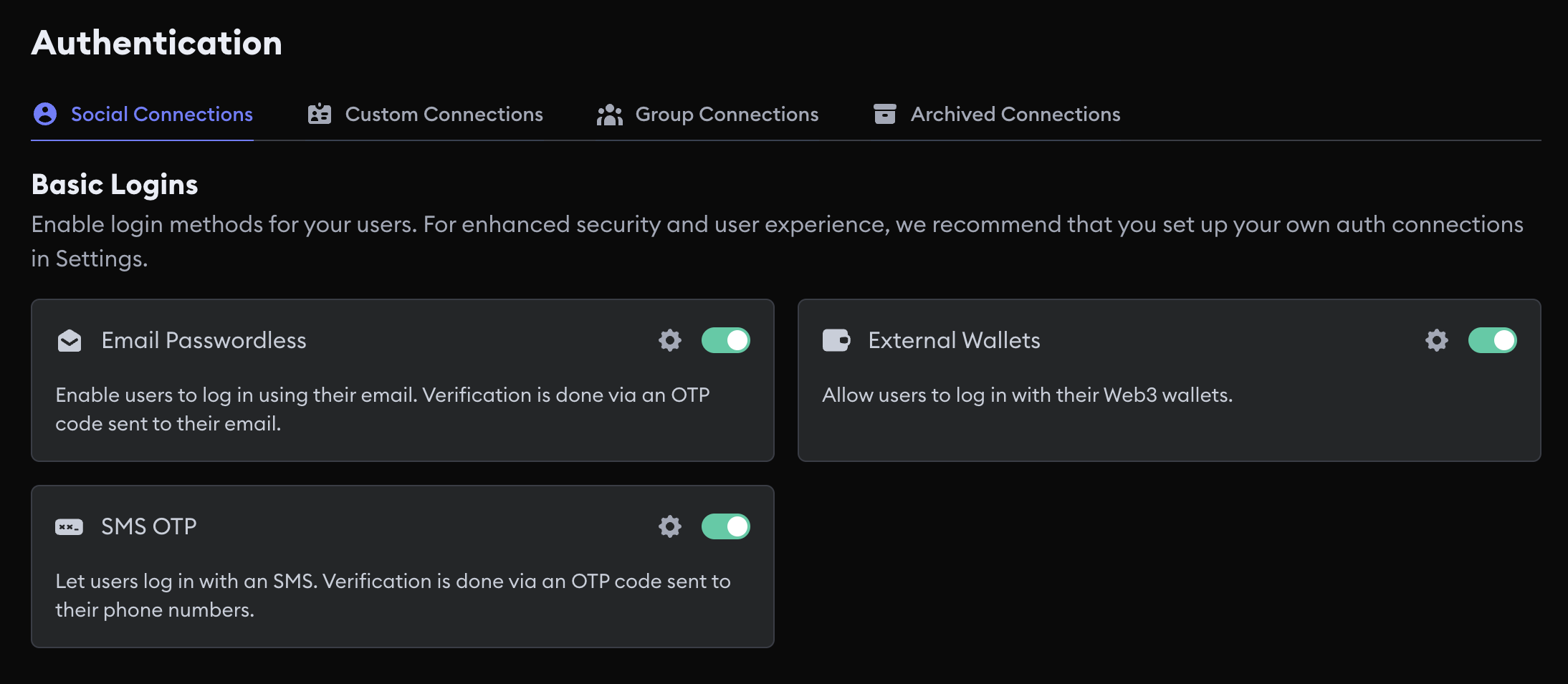
Default email passwordless
The default connection uses the email OTP service managed by Embedded Wallets. Enable Email Passwordless and the SDK reads it from the dashboard. You don't add an Auth Connection ID.
Caveats
- With the modal, the user enters their email address and OTP in a popup, not in the modal itself.
- The default connection and a custom email connection are separate connections, so they produce different wallet addresses for the same person unless you link them with a group connection.
Configure the default connection
- Open your project in the MetaMask Developer Dashboard.
- Select Social Connections.
- Enable Email Passwordless.
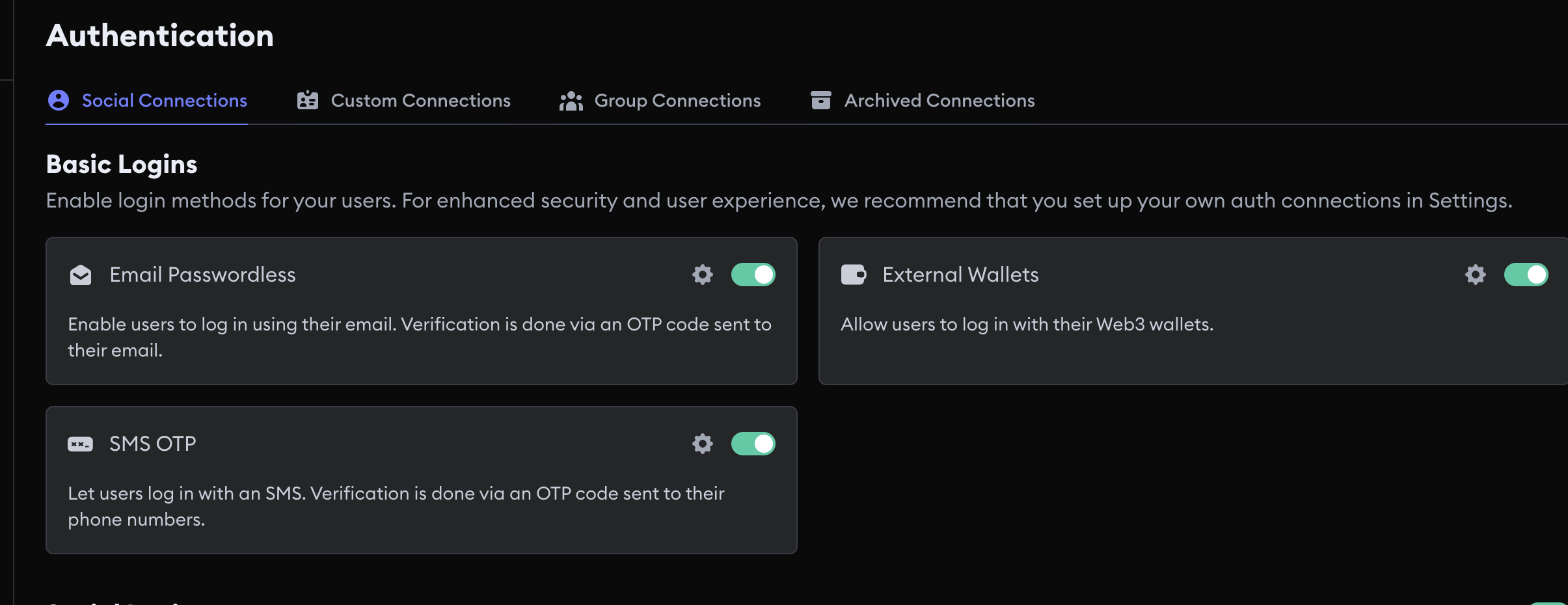
Custom email passwordless
A custom email connection on the dashboard is only an identifier. You don't paste SMTP credentials, an OAuth client ID, or a JWT JWKS URL. You create the connection, copy the Auth Connection ID, and pass that ID in your SDK configuration.
Default email login opens a popup so the user can enter their address and OTP.
When you attach your Auth Connection ID to email_passwordless in modalConfig.loginMethods, that
input stays inside the modal.
Decide between the default and a custom connection before you onboard users. Moving from the default email connection to a custom email connection changes every user's wallet address unless both connections are in a group connection with matching user identifiers.
Create the connection
- Open Social Connections in the MetaMask Developer Dashboard.
- Select the settings icon next to Email Passwordless.
- Enter an Auth Connection ID.
- Select Add Connection.
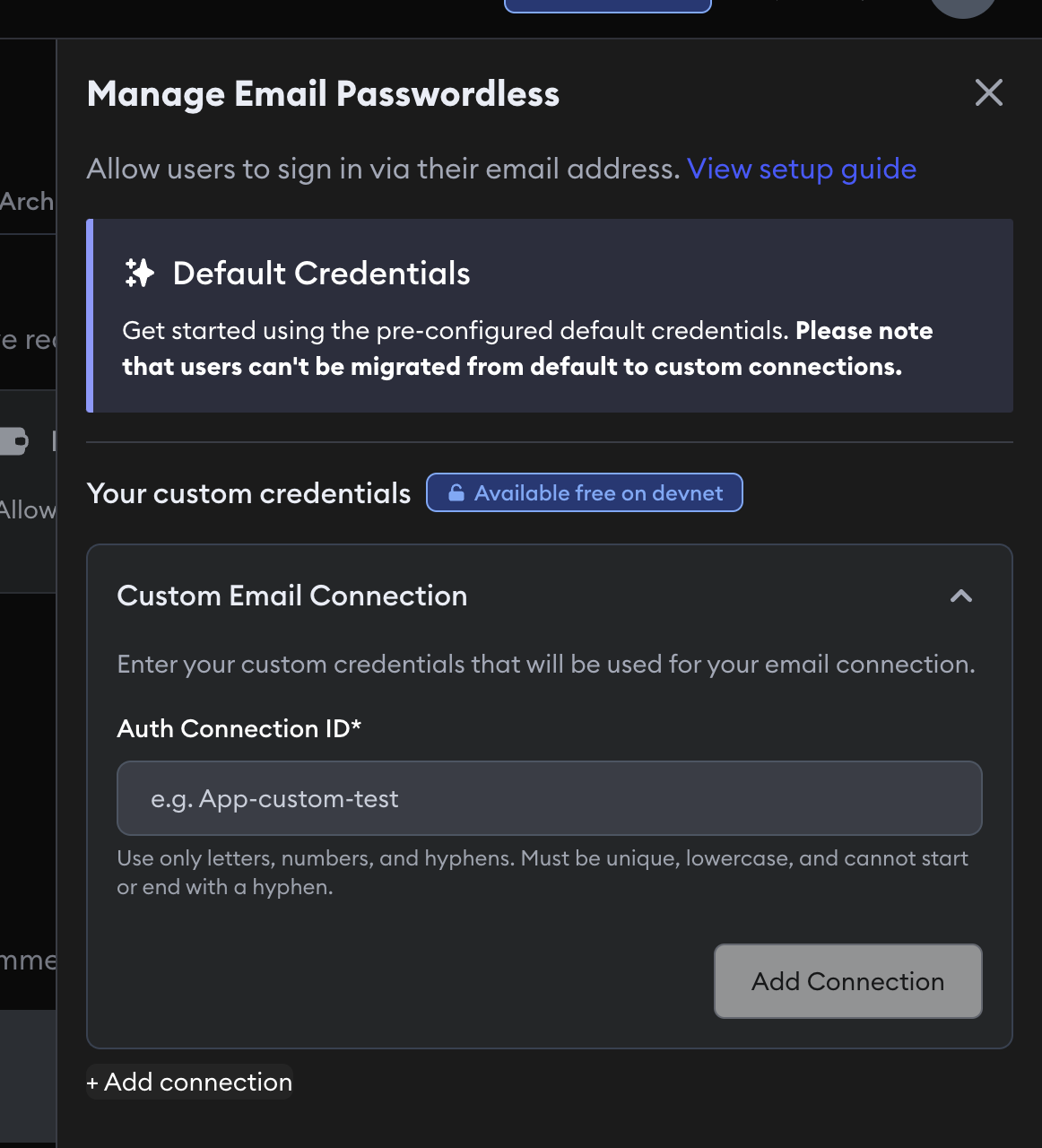
There are no other fields. If you already issue email OTPs from your own backend, use a custom JWT connection instead of this dashboard identifier.
Group email connections
A group connection gives the same person one wallet address across several login methods, for example email passwordless and Google.
Default email and a custom email connection are separate.
They produce different wallet addresses unless you group them and every connection in the group
uses the same JWT user identifier (email).
Pass both the child connection ID and grouped connection ID when you bypass the modal:
await connectTo(WALLET_CONNECTORS.AUTH, {
  authConnection: AUTH_CONNECTION.EMAIL_PASSWORDLESS,
  authConnectionId: '<EMAIL_AUTH_CONNECTION_ID>',
  groupedAuthConnectionId: '<GROUPED_AUTH_CONNECTION_ID>',
  extraLoginOptions: {
    login_hint: 'user@example.com',
  },
})
Usage examples
Use login_hint for the email address when you call connectTo.
For the modal, pass the Auth Connection ID in loginMethods so the flow stays in the modal.
Default implicit flow
Pass the user's email address as login_hint. The default connection opens a popup for the OTP step.
- React
- Vue
- JavaScript
- React Native
- Android
- iOS
- Flutter
- Unity
import { AUTH_CONNECTION, WALLET_CONNECTORS } from '@web3auth/modal'
import { useWeb3AuthConnect } from '@web3auth/modal/react'

const { connectTo } = useWeb3AuthConnect()

await connectTo(WALLET_CONNECTORS.AUTH, {
  authConnection: AUTH_CONNECTION.EMAIL_PASSWORDLESS,
  extraLoginOptions: {
    login_hint: 'user@example.com',
  },
})
import { AUTH_CONNECTION, WALLET_CONNECTORS } from '@web3auth/modal'
import { useWeb3AuthConnect } from '@web3auth/modal/vue'

const { connectTo } = useWeb3AuthConnect()

await connectTo(WALLET_CONNECTORS.AUTH, {
  authConnection: AUTH_CONNECTION.EMAIL_PASSWORDLESS,
  extraLoginOptions: {
    login_hint: 'user@example.com',
  },
})
import { AUTH_CONNECTION, WALLET_CONNECTORS } from '@web3auth/modal'

await web3auth.connectTo(WALLET_CONNECTORS.AUTH, {
  authConnection: AUTH_CONNECTION.EMAIL_PASSWORDLESS,
  extraLoginOptions: {
    login_hint: 'user@example.com',
  },
})
import { AUTH_CONNECTION, useWeb3AuthConnect } from '@web3auth/react-native-sdk'

const { connectTo } = useWeb3AuthConnect()

await connectTo({
  authConnection: AUTH_CONNECTION.EMAIL_PASSWORDLESS,
  extraLoginOptions: {
    login_hint: 'user@example.com',
  },
})
val response = web3Auth.connectTo(
    LoginParams(
        AuthConnection.EMAIL_PASSWORDLESS,
        loginHint = "user@example.com"
    )
)
let response = try await web3Auth.connectTo(
    loginParams: LoginParams(
        authConnection: .EMAIL_PASSWORDLESS,
        loginHint: "user@example.com"
    )
)
final response = await Web3AuthFlutter.login(
  LoginParams(
    loginProvider: Provider.email_passwordless,
    extraLoginOptions: ExtraLoginOptions(
      login_hint: 'user@example.com',
    ),
  ),
);
var options = new LoginParams
{
    loginProvider = Provider.EMAIL_PASSWORDLESS,
    extraLoginOptions = new ExtraLoginOptions
    {
        login_hint = "user@example.com"
    }
};

web3Auth.login(options);
Custom connection in the modal
Add the Auth Connection ID from the dashboard to loginMethods. The email or phone field and OTP stay inside the modal instead of a popup.
- React
- Vue
- JavaScript
import { WALLET_CONNECTORS, WEB3AUTH_NETWORK } from '@web3auth/modal'
import { type Web3AuthContextConfig } from '@web3auth/modal/react'

const web3AuthContextConfig: Web3AuthContextConfig = {
  web3AuthOptions: {
    clientId: 'YOUR_WEB3AUTH_CLIENT_ID',
    web3AuthNetwork: WEB3AUTH_NETWORK.SAPPHIRE_MAINNET,
    modalConfig: {
      connectors: {
        [WALLET_CONNECTORS.AUTH]: {
          label: 'auth',
          loginMethods: {
            email_passwordless: {
              name: 'email passwordless login',
              authConnectionId: '<AUTH_CONNECTION_ID>',
            },
          },
        },
      },
    },
  },
}
import { WALLET_CONNECTORS, WEB3AUTH_NETWORK } from '@web3auth/modal'
import { type Web3AuthContextConfig } from '@web3auth/modal/vue'

const web3AuthContextConfig: Web3AuthContextConfig = {
  web3AuthOptions: {
    clientId: 'YOUR_WEB3AUTH_CLIENT_ID',
    web3AuthNetwork: WEB3AUTH_NETWORK.SAPPHIRE_MAINNET,
    modalConfig: {
      connectors: {
        [WALLET_CONNECTORS.AUTH]: {
          label: 'auth',
          loginMethods: {
            email_passwordless: {
              name: 'email passwordless login',
              authConnectionId: '<AUTH_CONNECTION_ID>',
            },
          },
        },
      },
    },
  },
}
import { Web3Auth, WALLET_CONNECTORS, WEB3AUTH_NETWORK } from '@web3auth/modal'

const web3auth = new Web3Auth({
  clientId: 'YOUR_WEB3AUTH_CLIENT_ID',
  web3AuthNetwork: WEB3AUTH_NETWORK.SAPPHIRE_MAINNET,
  modalConfig: {
    connectors: {
      [WALLET_CONNECTORS.AUTH]: {
        label: 'auth',
        loginMethods: {
          email_passwordless: {
              name: 'email passwordless login',
              authConnectionId: '<AUTH_CONNECTION_ID>',
            },
        },
      },
    },
  },
})
Custom implicit flow
When you bypass the modal, pass the same Auth Connection ID together with login_hint.
- React
- Vue
- JavaScript
- React Native
- Android
- iOS
- Flutter
- Unity
import { AUTH_CONNECTION, WALLET_CONNECTORS } from '@web3auth/modal'
import { useWeb3AuthConnect } from '@web3auth/modal/react'

const { connectTo } = useWeb3AuthConnect()

await connectTo(WALLET_CONNECTORS.AUTH, {
  authConnection: AUTH_CONNECTION.EMAIL_PASSWORDLESS,
  authConnectionId: '<AUTH_CONNECTION_ID>',
  extraLoginOptions: {
    login_hint: 'user@example.com',
  },
})
import { AUTH_CONNECTION, WALLET_CONNECTORS } from '@web3auth/modal'
import { useWeb3AuthConnect } from '@web3auth/modal/vue'

const { connectTo } = useWeb3AuthConnect()

await connectTo(WALLET_CONNECTORS.AUTH, {
  authConnection: AUTH_CONNECTION.EMAIL_PASSWORDLESS,
  authConnectionId: '<AUTH_CONNECTION_ID>',
  extraLoginOptions: {
    login_hint: 'user@example.com',
  },
})
import { AUTH_CONNECTION, WALLET_CONNECTORS } from '@web3auth/modal'

await web3auth.connectTo(WALLET_CONNECTORS.AUTH, {
  authConnection: AUTH_CONNECTION.EMAIL_PASSWORDLESS,
  authConnectionId: '<AUTH_CONNECTION_ID>',
  extraLoginOptions: {
    login_hint: 'user@example.com',
  },
})
import { AUTH_CONNECTION, useWeb3AuthConnect } from '@web3auth/react-native-sdk'

const { connectTo } = useWeb3AuthConnect()

await connectTo({
  authConnection: AUTH_CONNECTION.EMAIL_PASSWORDLESS,
  authConnectionId: '<AUTH_CONNECTION_ID>',
  extraLoginOptions: {
    login_hint: 'user@example.com',
  },
})
val response = web3Auth.connectTo(
    LoginParams(
        AuthConnection.EMAIL_PASSWORDLESS,
        loginHint = "user@example.com",
        authConnectionId = "<AUTH_CONNECTION_ID>"
    )
)
let response = try await web3Auth.connectTo(
    loginParams: LoginParams(
        authConnection: .EMAIL_PASSWORDLESS,
        loginHint: "user@example.com",
        authConnectionId: "<AUTH_CONNECTION_ID>"
    )
)
final response = await Web3AuthFlutter.login(
  LoginParams(
    loginProvider: Provider.email_passwordless,
    // Configure loginConfig with your Auth Connection ID during initialization.
    extraLoginOptions: ExtraLoginOptions(
      login_hint: 'user@example.com',
    ),
  ),
);
var options = new LoginParams
{
    loginProvider = Provider.EMAIL_PASSWORDLESS,
    extraLoginOptions = new ExtraLoginOptions
    {
        login_hint = "user@example.com"
    }
};

web3Auth.login(options);
Troubleshooting
If OTP or magic link emails do not arrive, the recipient may have unsubscribed from Embedded Wallets transactional email. See Email OTP or magic link not received for the resubscribe form and other checks.